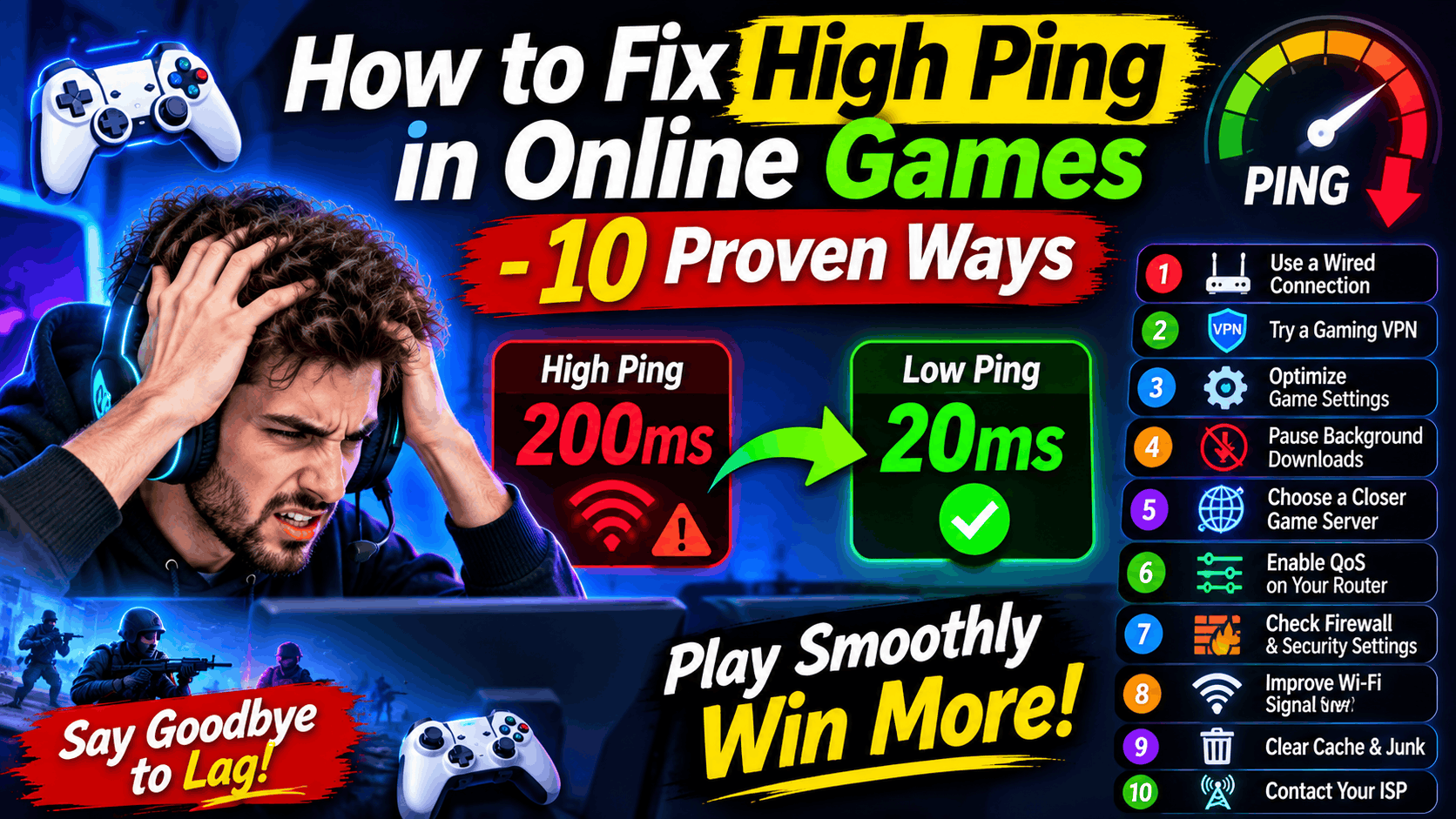
Nothing ruins a ranked match faster than hitting the trigger on time and watching your character rubber-band backward two seconds later. When you want to know how to fix high ping in online games, you are really fighting delay between your device and the game server.
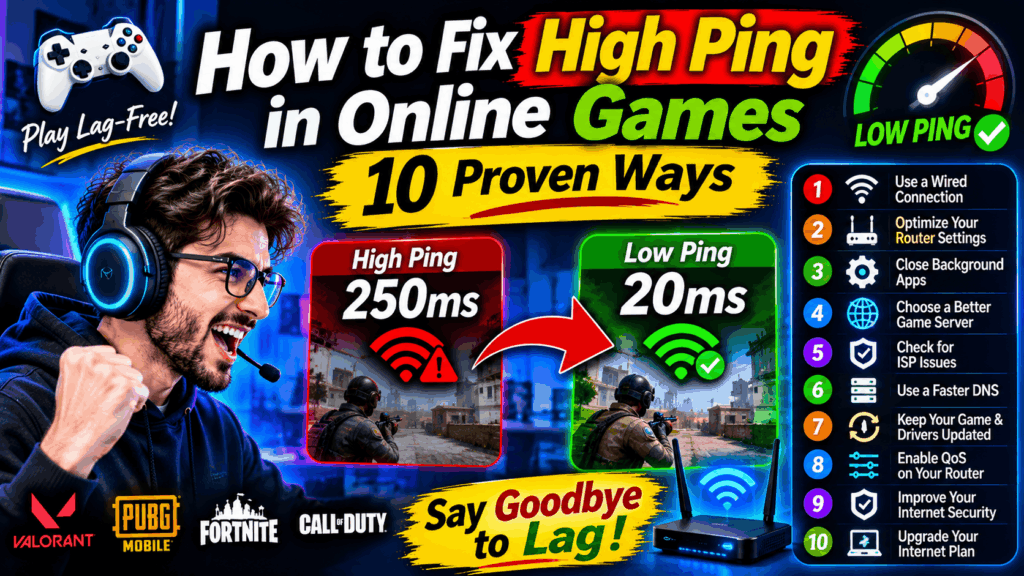
A jump from 25 ms to 140 ms can turn a clean clutch play into an instant loss. Many players assume high ping means their internet plan is too slow, yet connection stability and routing matter just as much. At GameZ Hives, we spend hours testing real match connections across North America and Europe. Below are practical steps on how to reduce ping in online games and fix lag and high ping in games without buying unnecessary gear first.
Why Ping Spikes Happen During Matches
Ping measures round-trip time in milliseconds between your PC or console and a game server. Lower numbers mean faster reactions, while higher numbers mean your actions take longer to register.
Distance to the server plays a huge role in latency. A player in Chicago connecting to a US East server in Virginia usually sees around 20 to 35 ms. Connecting from London or Berlin to that same US server often pushes ping past 90 ms because data travels across the Atlantic.
Local network traffic causes plenty of spikes too. If someone in your house starts streaming 4K video or downloading a 60 GB game update, your connection can choke mid-match.
10 Proven Ways to Fix Lag and High Ping in Games
When you are trying to fix lag and high ping in games, start with quick wins on your own setup before changing hardware or paying for extra tools.
- Switch from Wi-Fi to Ethernet. Wireless signals drop packets and suffer interference from walls, microwaves, and crowded channels. A basic Cat6 cable often cuts jitter right away.
- Pick the closest regional server. Always select US East, US West, or EU Central servers near your city instead of letting matchmaking place you far away.
- Pause background downloads and streams. Stop cloud backups, browser tabs, and game launchers from hogging upload or download bandwidth while you play.
- Restart your modem and router. Power-cycling clears stuck routing tables, memory leaks, and temporary ISP glitches that build up over weeks.
- Enable Quality of Service (QoS). Turn on QoS in your router settings and prioritize your gaming PC or console over phones and smart TVs.
- Use the 5 GHz Wi-Fi band if wired is impossible. If you must stay wireless, connect to the 5 GHz band near the router rather than the crowded 2.4 GHz band.
- Update your network adapter drivers. Outdated drivers on Windows or console firmware bugs can cause sudden packet loss and latency spikes.
- Close bandwidth-heavy apps. Discord video calls, torrent clients, and live streams can push your upload queue to its limit during intense fights.
- Check for ISP routing congestion. Sometimes your internet provider sends game traffic on a long detour through Frankfurt or New York before reaching the server.
- Test a gaming VPN or routing tool only when needed. If your ISP uses poor routing to a specific server, a fast VPN or game route optimizer can sometimes trim ping.
How to Reduce Ping in Online Games Step by Step
If you want a clean routine before an important match, follow this quick checklist. Knowing how to reduce ping in online games works best when you test one change at a time so you see what actually helps.
- Run a baseline ping test to your target game server and note your average ms and packet loss.
- Plug in an Ethernet cable and disable Wi-Fi on your gaming rig or console.
- Pause downloads on every other device in the home and close extra apps on your PC.
- Log into your router admin page, check that QoS is active, and reboot the router if needed.
- Join a practice lobby or casual match on your nearest server and check your new ping reading.
Comparing Common Ping Fixes
Not every fix solves the same bottleneck. Some cost nothing and work in two minutes, while others cost around $5 to $15 per month or require new cables.
| Method | Estimated Cost | Best For | Impact on Ping |
| Wired Ethernet Cable | $8 to $15 | Unstable Wi-Fi and packet loss | High reduction and steadier ping |
| Pausing Background Traffic | $0 | Shared home networks and updates | Stops sudden mid-game spikes |
| Router QoS Tuning | $0 | Multiple devices sharing bandwidth | Keeps gaming traffic prioritized |
| Gaming VPN / Route Tool | $5 to $13 / month | Bad ISP routing to distant servers | Situational; can lower or raise ping |
Pros and Cons of Fixing Ping Yourself
Handling network tweaks at home gives you fast control over your setup, though there are limits to what you can change on your end.
Pros
- Most tweaks cost $0 and take under 15 minutes to test.
- Better connection stability reduces rubber-banding and missed inputs.
- You learn whether the problem lives inside your home or with your ISP.
Cons
- A bad ISP route or overloaded game server is outside your direct control.
- Running cables across a large house or apartment can be inconvenient.
- Adding a VPN can increase ping if you pick a server farther from the game host.
My Experience at GameZ Hives
At GameZ Hives, our team tested these fixes on fiber and cable lines across US and EU servers in competitive shooters and arena games. Switching from Wi-Fi to Ethernet made the biggest immediate difference during busy evening hours.
On a Toronto connection hitting a US East server, we saw ping drop from 58 ms down to 26 ms just by plugging in a cable and pausing a cloud backup. Meanwhile, testing a VPN from Munich to a Frankfurt server added 7 ms because the encrypted tunnel took a slightly longer path. That testing taught us at GameZ Hives to measure first and keep only the changes that genuinely help.
When Hardware or ISP Upgrades Make Sense
Software tweaks will not fix a failing router or a weak line. If your router is five years old and drops connections under heavy load, replacing it can stabilize your whole network.
If you live in Sydney, Toronto, or Berlin and still see 120 ms to nearby regional servers after wiring up, call your ISP. Ask them to check line noise, signal levels, or routing loops on your connection.
FAQs
What is a good ping for online gaming?
Anything under 50 ms feels smooth and responsive for fast competitive games. Ping between 50 ms and 90 ms is still playable for most players, while anything over 100 ms usually feels sluggish.
Does faster download speed lower my ping?
Not automatically. A 500 Mbps plan can still have high ping if your Wi-Fi signal is weak or another device saturates your upload speed, whereas a 100 Mbps wired line can give great ping.
Can a VPN help with high ping in games?
Sometimes, your ISP routes your traffic inefficiently to a game server. In many cases, though, a VPN adds extra hops and slightly raises ping, so always test before and after.
Why does my ping jump only at night?
Evening hours bring heavy neighborhood traffic and home streaming, which can congest local ISP nodes. Game servers can also experience peak player loads during evening hours in the US and Europe.
How do I fix high ping in online games on console?
Connect your PlayStation or Xbox with an Ethernet cable, pause game downloads and rest-mode updates, and choose the closest regional server in your game settings.
Sources & References
GameZ Hives Research Team, Cloudflare Networking Guides, Valve Developer Community, Riot Games Player Support, Microsoft Xbox Network Support